
Correlation Meter
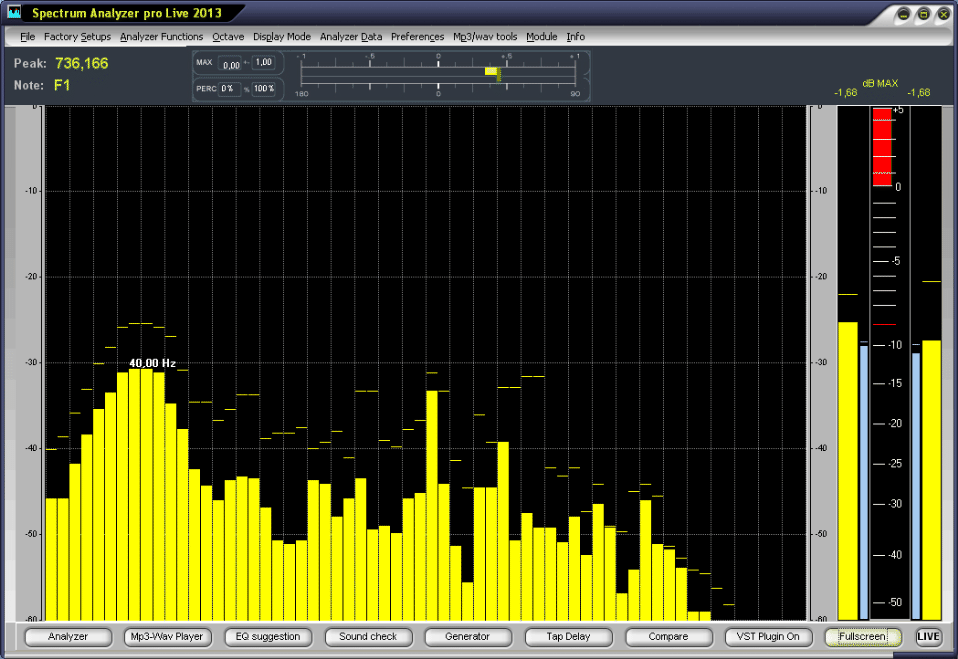
The Correlation Meter provides information about mutual phase-frequency relations between the signal of the left and right channel and allows us to spot any possible irregularities. These 'irregularities' may not have any significance in the case of stereo playback, but it should be remembered that the material we record can also be played as a mono signal (for example, on TV or on one of the radio stations which are broadcast or received in mono).
We can not emphasize enough how important it is that your final mix is as close as possible to your intended mix. Of course you will have to spend some time with the program to learn how to read the indications of the correlation meter. Correlation with percentaged values.
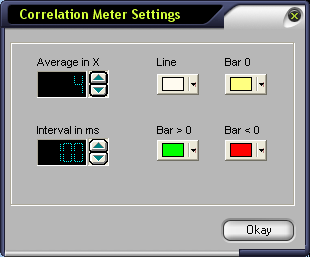
In this Settings dialogue all parameters of the correlation settings are to the user for individual attitude at the disposal.
AVERAGE in X :
Here the time constant for the averaging of the correlation criterion is stopped. In the example shown above 6 values are averaged and spent then. With the next run the last value is then overwritten with the new. The adjustment possibilities are enough from 1 to 49. Consider thereby that high values are to be read off beautifully slowly, but fast changes of the correlation degree in the announcement are lost.
Interval in ms
Here you can stop the time periods, in which the next in each case measured value is switched to the announcement.
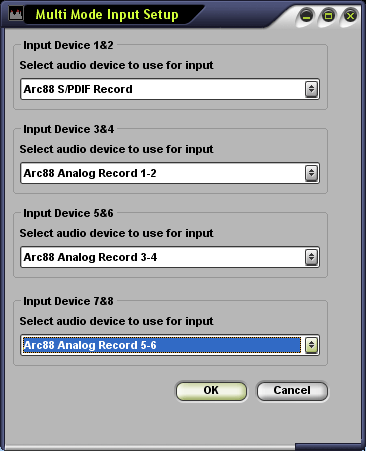
Multi Mode Support. Switch between 4 Stereo Devices easily with the Keys (NUMBER PAD1 - 4). So you can analyze the input for Alesis ADAT, 8 Track Recording and any Multi Channel recordings...
NUMBER PAD1 = DispayDriver 1 & 2
NUMBER PAD2 = DispayDriver 3 & 4
NUMBER PAD3 = DispayDriver 5 & 6
NUMBER PAD4 = DispayDriver 7 & 8
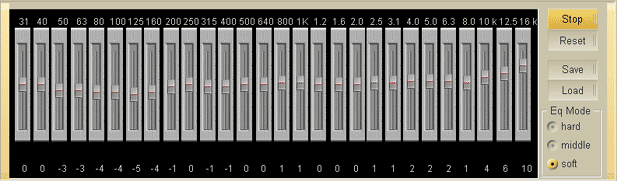
The EQ Suggestion Module
The Eq suggestion provides equalizer settings on a
correlation, automatically adjusting equalizer that will optimize the sound under "ideal studio conditions". Eq suggestion provides settings for the Equalizer faders to make the Sound (Input) linear.
The SA will allow the user to actually observe the holes or the overlevels(highs and lows) as a function of frequency. The user may easily copy the fader settings to an actual 1/3 EQ hardware unit.
Minor adjustments may be necessary as this process does not take into account any of the natural acoustics that are inherent and unique to each studio or listening area. If the user saves the results from Eq suggestion, then loads the file into the Graphic Equalizer 2.0, the data will set up the EQ automatically.
There will be a audibly noticeable difference between the original source and the revised signal due to the equalization process.correlation,
automatically adjusting Spectrum Analyzer
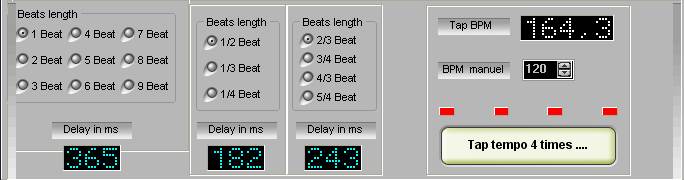
The Tap Delay Module
Tap Delay calculator- display for full, half and quarter Beats
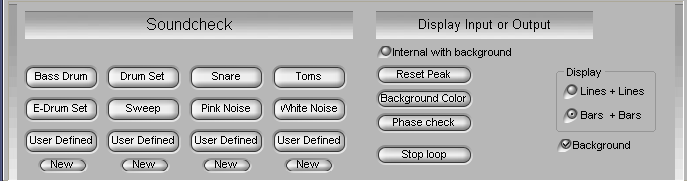
Sound Check without a Band module
This section of the program offers the ability to make sample measurements of the frequency response of a performance area, without actually having the artists present. It may be utilized to set approximate EQ levels during the setup process. This will help reduce the typical last minute hassle of waiting for the musicians, performing a sound check, making required adjustments, redo the sound check
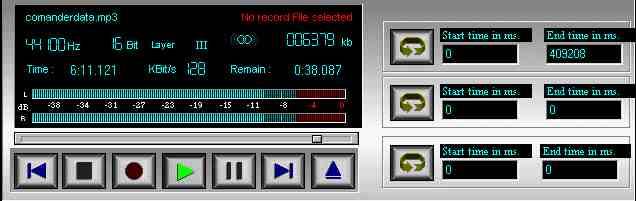
The Wave Player module
The Wave Player allows you the opportunity to load a pre-recorded Mp3/wav files and run an analysis of the data. All data contained in your sampling will be shown. Any changes made to the sampling rate will be automatically detected by the Spectrum Analyzer. The Locator is very practical when you work with big Wave files.
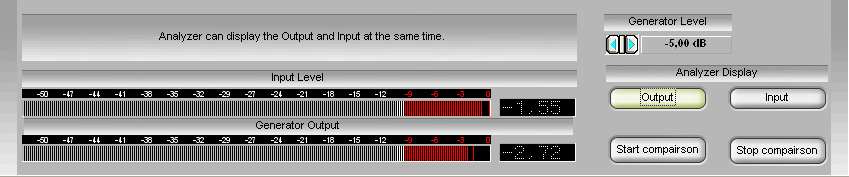
The Generator module
The built-in generator allows the correct calibration between Analyzer and the line-in signal. Generator leveling calibrated to 1/1000 of a dB.
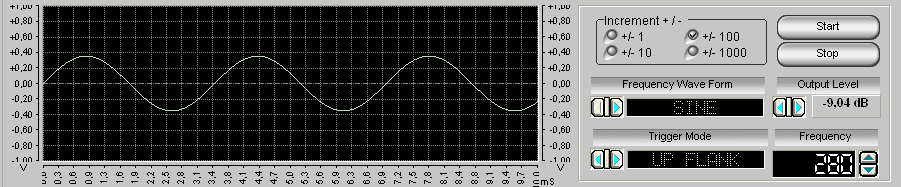
The Generator module
The built-in generator allows the correct calibration between Analyzer and the line-in signal. Generator leveling calibrated to 1/1000 of a dB.
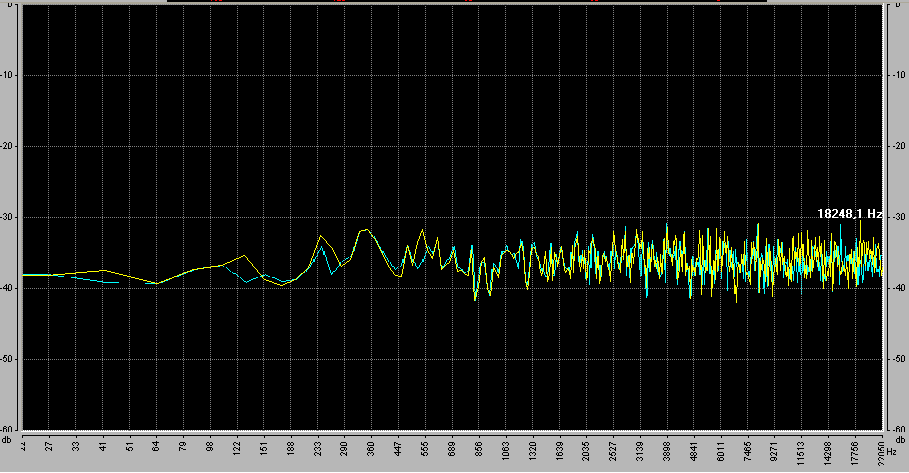
Background module
You can load a frozen Spectrum as Background for better comparisons.Opportunity to select three various colors to make clear the difference amplitudes.

Musical Notes Detector
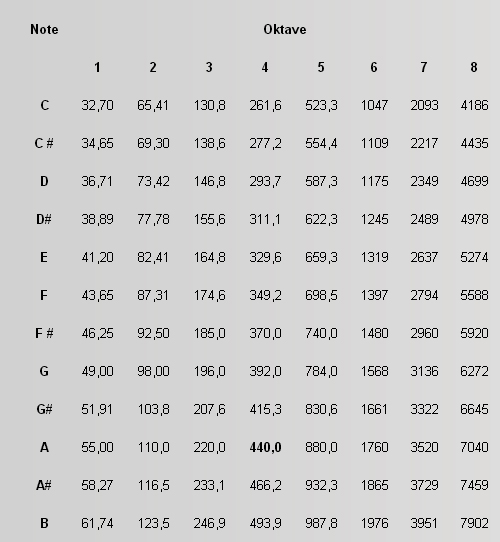
What are the frequencies of musical notes like G and G# in k-hertz?
FREQUENZ (in hertz)= 440 × 2^( (OCTAVE - 4) + ( TON - 10) / 12 )